
When ColdFusion 8 came out, there was tons of oohs, ahhs, and OMG must have that over the new features and goodies. It was one serious upgrade, with some fifty or more new tags and functions introduced. Developers eagerly looked to learn more about the new CFIMAGE tags (awesomeness, to be sure), CFPDF (ditto), threading and ajax controls, etc etc etc. But one big change that was never really mentioned unless you looked at the very very very detailed change log, was the awesome expansion of the CFDUMP tag! Indeed, I think Charlie Arehart may be about the only person who mentioned it in some presentaions he did on the hidden gems and tweaks in ColdFusion 8. I know I certainly never even thought about it, until I was trying to find a way to make it more email friendly and was suprised to find that my Google-fu led me right to the ColdFusion 8 docs! There I discovered that in CF8, seven new attributes were added to the tag to make it far more robust and give you more control!
We all know the basics of CFDUMP. For years now, you could just do <cfdump var="#myVariable#" /> and get a nicely formatted dump of pretty much any data, no matter what the type: simple values, queries, arrays, structs, file objects, XML, etc. As a side note, I think it is seriously overstated how awesomely amazing it is that it can do that, even with seriously complex data types. So if we have a bit of code, like so:
 <cfset myVariable = StructNew() />

<cfset myVariable.MyName = "Random Person" />

<cfset myVariable.MySex = "F" />

<cfset myVariable.MyCity = "College Station" />

<cfset myVariable.MyPets = ArrayNew(1) />

<cfset myVariable.MyPets[1] = "Hershey" />

<cfset myVariable.MyPets[2] = "Fusion" />

<cfset myVariable.MyPets[3] = "Blue" />

<cfset myVariable.MyPets[4] = "Yuki" />


<cfdump var="#myVariable#" />
We get:
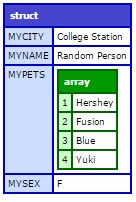
Simple, easy to do, and a very nice interface for drilling down the results if you are viewing them in the browser. Beyond that, it had three very basic attributes. You could use label to add a text label to the output (useful if you are doing multiple, consecutive dumps), you could use the expand attribute to start the views collapsed, and you could use the top attribute to limit how many rows came back for queries or the depth of a structure that was shown.
<cfdump var="#myVariable#" expand="no" top="2" />

During development, CFDUMP is one of your best friends, making it very quick and easy to check a range of data without having to deal with adding more exceptions on top of which ever one you might be debugging. However, one of its great features, is also one of the things that made it a royal pain if you didn't want to see the results in a browser. If you ever do a few source on a cfdump output, you'll discover that is done with a lot, and I mean a LOT, of JavaScript. So trying to dump that into an email to send yourself, for example, on a production app could have ugly results. On our Groupwise system, for example, all you got was some of the top of the JavaScript and the rest would get cut off. So one place where it might be especially useful to dump a bunch of variables, like see what was in the session and form scopes a the time of an exception, still required you to loop it the old fashioned way.
In ColdFusion 8, however, Adobe finally gave this oft used tag some love, and seven new attributes: show, format, hide, keys, metainfo, output, and showUDFs. Show and hide deal with queries and structures where you can give a comma-separated list of specific fields or keys to show or hide, respectively, from the dumped variable.
<cfdump var="#myVariable#" show="MyPets" label="Show MyPets" /><cfdump var="#myVariable#" hide="MyCity,MySex" label="Hide MyCity and MySex" />
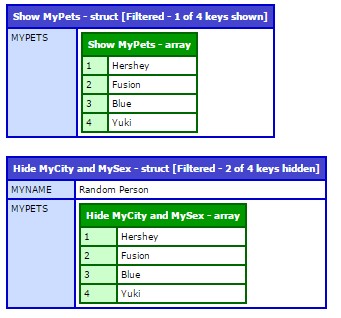
The keys attribute is purley for structures, allowing to indicate how many keys should be shown. This differs from top in that it refers to actual number of keys, rather than levels of keys. Compare this dump of the same struct to the one above where we specified top to see the difference.
<cfdump var="#myVariable#" keys="2" />

With the showUDFs, you can exclude any user-defined functions, normally included in the dump, from being shown. Similarly, you can use metainfo to specifically remove the execution time, SQL statement, and caching details from the CFDUMP results. However, the two new attributes that are the most exciting to me are the output and format options. With output, rather than just having the cfdump go to the browser as usual, you can send it to a specific filename (using the full, absolute or relative path similar to with cffile), or even more awesomely, to your browser's console.
Format let's you turn off all the JavaScript goodies and change the output to pure text, ideal if you are having your code send out an email to someone about an exception (especially in a production site where you don't want debugging details showing to your users), but don't want to deal with having to write the output to an HTML file and attach it to the email and risk it getting eatten by some spam filter somewhere.
<cfdump var="#myVariable#" format="text" />
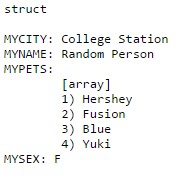
Nice, right? I know in our shop it was awesome to discover as we have one app that sends all of its exception reports to an automated help desk system via email. All the HTML/JavaScript would get so borked in translation that there was no usable info left at all! Now, we just switched it to text format, and we get clean, readable trouble tickets! Thanks Adobe!
Note: Post updated December 16, 2015 to flip code examples to screenshots due to switch off from a CF platform.